Workflow notes / October 18, 2026
How to make a flying car AI video with one source image
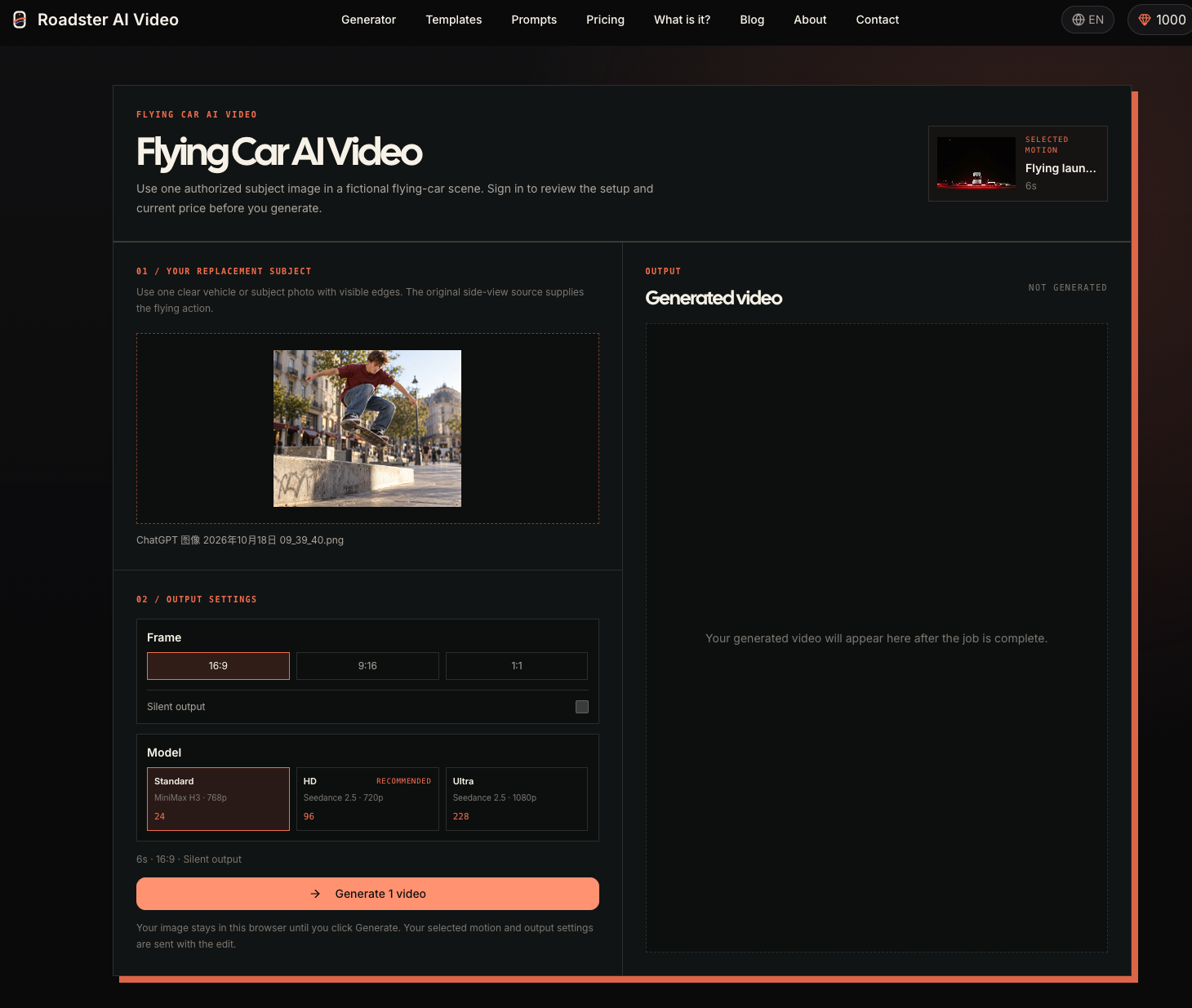
The Roadster flying-car page is a narrow fixed-video edit. You bring one image, the reference supplies the short flying action, and the server shows the current price before any generation can start. This guide records the tested flow with a bicycle image and a person on a skateboard.
Start with one image you can use
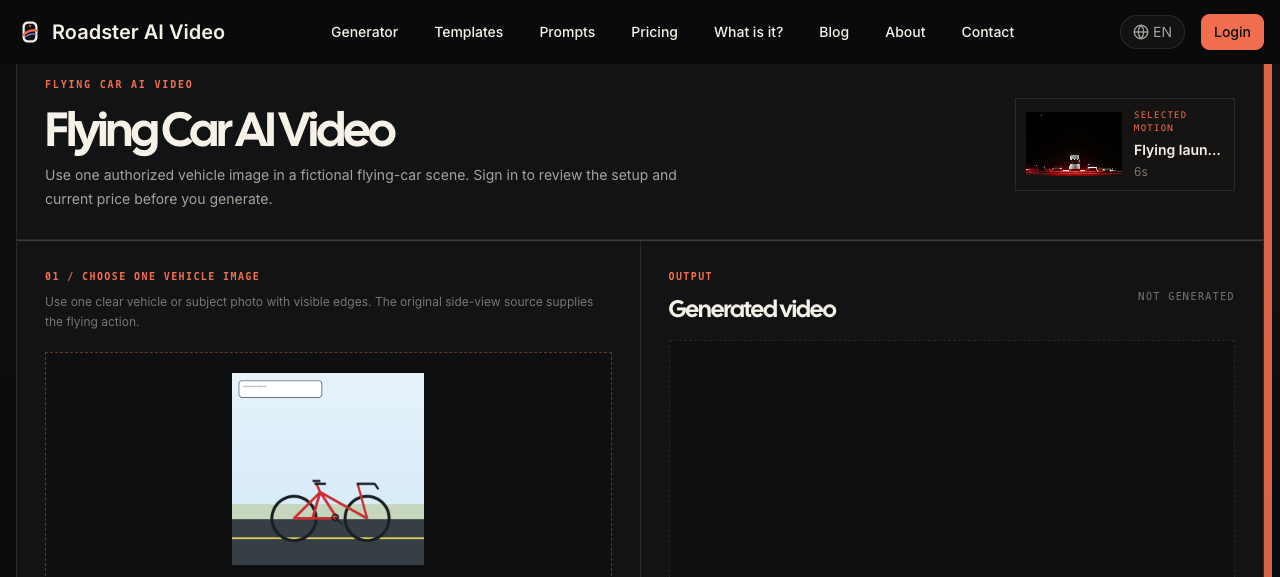
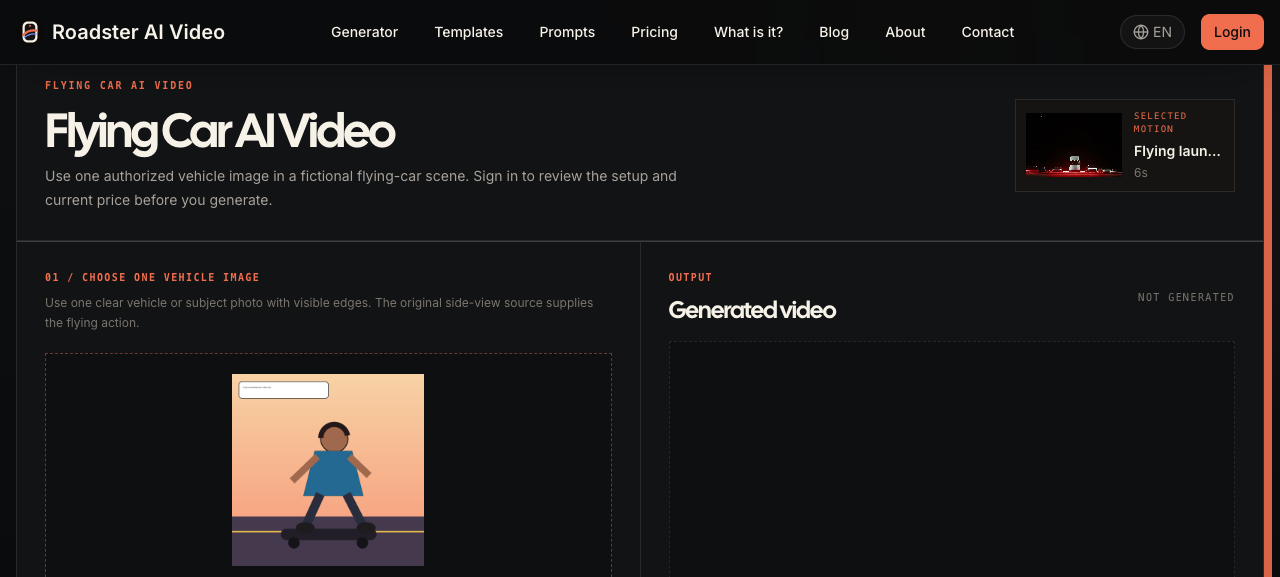
The upload accepts JPG, PNG, and WebP files up to 10 MB. A clear subject with visible edges works best for the fixed side-view source. The first test used a simple bicycle illustration; the second used a simple illustration of a person standing on a skateboard.
These are test inputs for the interface. They are not provider outputs, vehicle-performance evidence, or a promise that every subject will remain consistent through the airborne movement.
Choose the lowest-cost MiniMax setup
The flying-car page opens the six-second side-view template. Its Standard card uses MiniMax H3 at 768p. The live public quote returned 24 credits for one image, one output, silent audio, and the locked reference video. The quote endpoint is the source of truth; a copied number in an article should never replace it.
The page keeps audio off by default and preserves the reference camera, timing, smoke, trajectory, and landing beat as the intended edit contract. A generated result can still change details because the provider output is stochastic.
Sign in before the provider is called
Uploading only creates a local preview and a short-lived handoff. Clicking Generate checks the current session before it can upload the source snapshot, reserve credits, run moderation, and submit the job. In the public validation run, both test clicks stopped at the sign-in boundary and made no generation request.
That stop is deliberate. It prevents an anonymous click from spending credits or sending an image to a provider. After sign-in, the same button should continue through the server quote, safety checks, credit hold, and provider submission path.
Payment opens a checkout path, not instant credits
The pricing page exposes one-time packs of 60, 120, 240, and 570 credits. The credit picker can be opened without paying, but an unauthenticated selection returns to sign-in. A hosted checkout and a confirmed payment are separate states.
Credits are added only after the signed Waffo payment event is accepted by the server. A browser return, a visible price, or an abandoned checkout is not proof that a balance changed. Do not enter payment details while testing this flow unless you intend to buy the selected pack.
What the two-input check covered
The bicycle and skateboarder previews were uploaded on the live flying-car page, the Standard MiniMax H3 card was selected, and both quote previews returned 24 credits. The saved screenshots show the upload state, model selection, and post-click state. The provider was not called because no account was signed in.
Keep the result fictional and reviewable
Use an image you own or have permission to transform. Roadster AI Video is independent from Tesla and does not turn a fictional edit into official event footage, public-road approval, or proof that a bicycle, skateboard, or other subject can fly. Label AI-generated media when you publish it.
Try the fixed flying-car editor
Open the generator to upload one image, see the current quote, and continue after sign-in.
Open the flying-car editor Roadster AI Video